From session recording to client tasks: write-ups you approve in one screen
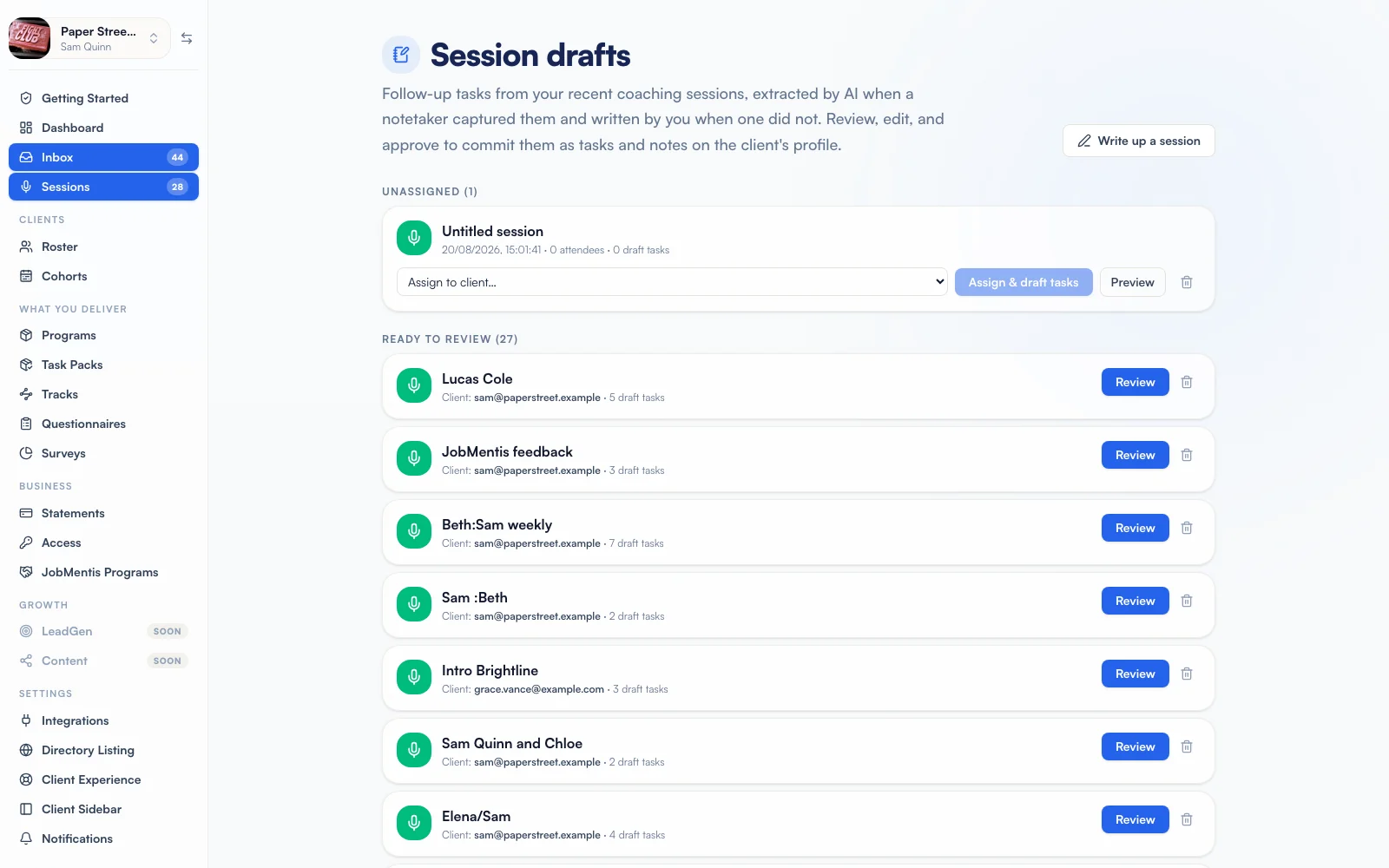
Connect your notetaker (Grain, Granola, Fireflies.ai, Fathom, SpeakApp) and each coaching session comes back as a draft: client tasks, your follow-ups, private notes and a summary to send. You review and approve it in one screen. No notetaker? Paste a transcript from Zoom, Teams or Meet, or write it yourself.
How it works
Connect your notetaker
Or skip it and paste transcripts. New sessions are picked up every hour.
Hold the session as usual
The recording is matched to the client and to the booking it covers.
Review the draft
Edit the tasks, the notes and the summary. Approve when it is right.
Your client sees what you sent
Agreed tasks in their list and your summary under the session.
What a session draft contains
Two task lists, one for the client and one for you, each with due dates. Client tasks arrive with the right tool already linked where the draft recognised the work ("draft two more STAR stories" points at the Story Bank). Your private notes are kept apart from the client summary: the notes stay yours, the summary is what the client receives, and it stays on their program page beside the session.
Approving a session also counts it
A write-up is linked to the booking it covers when one starts within two hours of the recording. When two bookings are equally close, it refuses to guess and arrives unlinked for you to choose. Approving counts the session unless one is already on record for that client within three hours, and the review screen shows the counter before and after, so a client you met four times never shows no sessions used.
Autopilot, only if you want it
Autopilot approves sessions that do not need you. It is off until you turn it on and waits four hours by default, so you can open, edit or dismiss a draft first. Approving, counting the session and emailing the client are three separate choices, and emailing is off by default because it cannot be undone. If any drafted task cannot be found in the transcript, autopilot leaves the whole session for you.
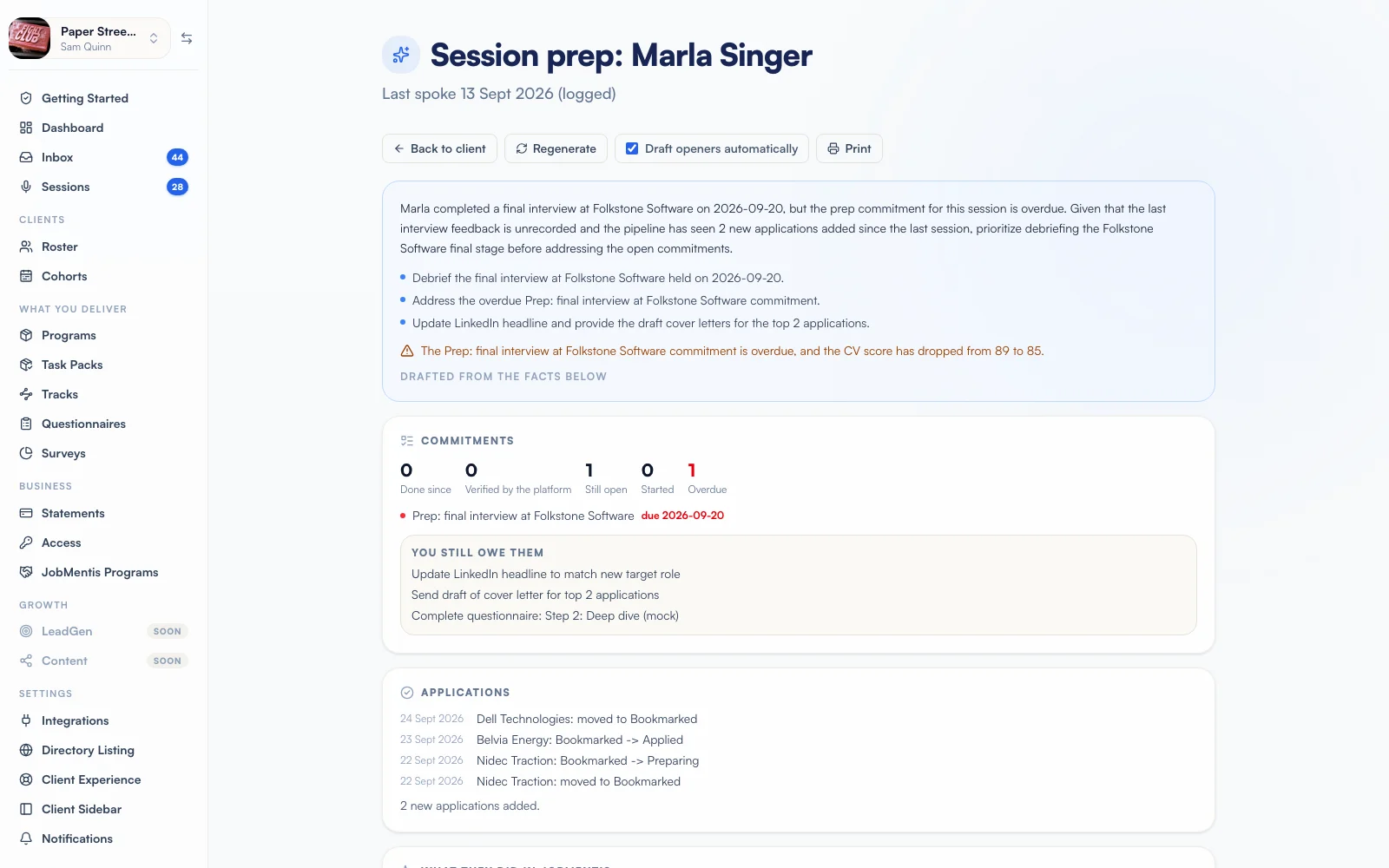
Before the session: a check-in and a prep brief
Clients can answer your own short questions before each session, up to 8 per language, with a reminder 6 / 12 / 24 / 48 hours before (your choice). You write the questions in each language yourself; nothing is machine-translated. The prep brief opens with their answers and lists what changed since the last session, read from their records. Its AI opener is rejected if it quotes a number those records do not contain.
Works with
- Client accountabilitySee the work between sessionsApplications, interviews, contacts and conversations counted weekly, with targets and early flags.
- Programs and task packsDeliver the programTask packs that release on each client's own week and tick themselves off when the work is done.
- Your clients' sideGive clients a workspaceYour logo, their program, your messages and the job-search tools, in their own language.
FAQ
Questions coaches ask
Which notetakers does it work with?
Grain, Granola, Fireflies.ai, Fathom, SpeakApp. Without one, paste a transcript exported from any meeting tool and the same draft is produced, usually in under a minute.
Do you keep the recording or the transcript?
No. A transcript is read once to draft the session and then discarded. Only the link to the recording stays, and it reaches the client only after you approve.
What does my client see?
The tasks you approved, and the summary you chose to send. Never your private notes, and never a draft still waiting for your review.
What about calls that are not coaching sessions?
A recording that matches no client waits in an unassigned list and nobody is emailed. In Calendly you choose which meeting types count as sessions, so a free intro call never spends one.
Want to see it on your own program?
Bring one program and two or three real clients to a call. We build the first schedule with you and show you what the console would flag this week.